Speech
The Speech page in the ASI:Cloud dashboard provides AI-powered speech-to-text and text-to-speech tools. It is a dashboard-only feature with no public API yet, and it is free to use.
Open it from Serverless Inference → Speech in the left navigation. The page has three tabs:
- Transcribe: convert an audio file (or live recording) to text.
- Synthesise: generate natural-sounding speech from text.
- History: review and download your previous Speech jobs.
Speech currently only supports English.
Transcribe
Use the Transcribe tab to turn audio into text.
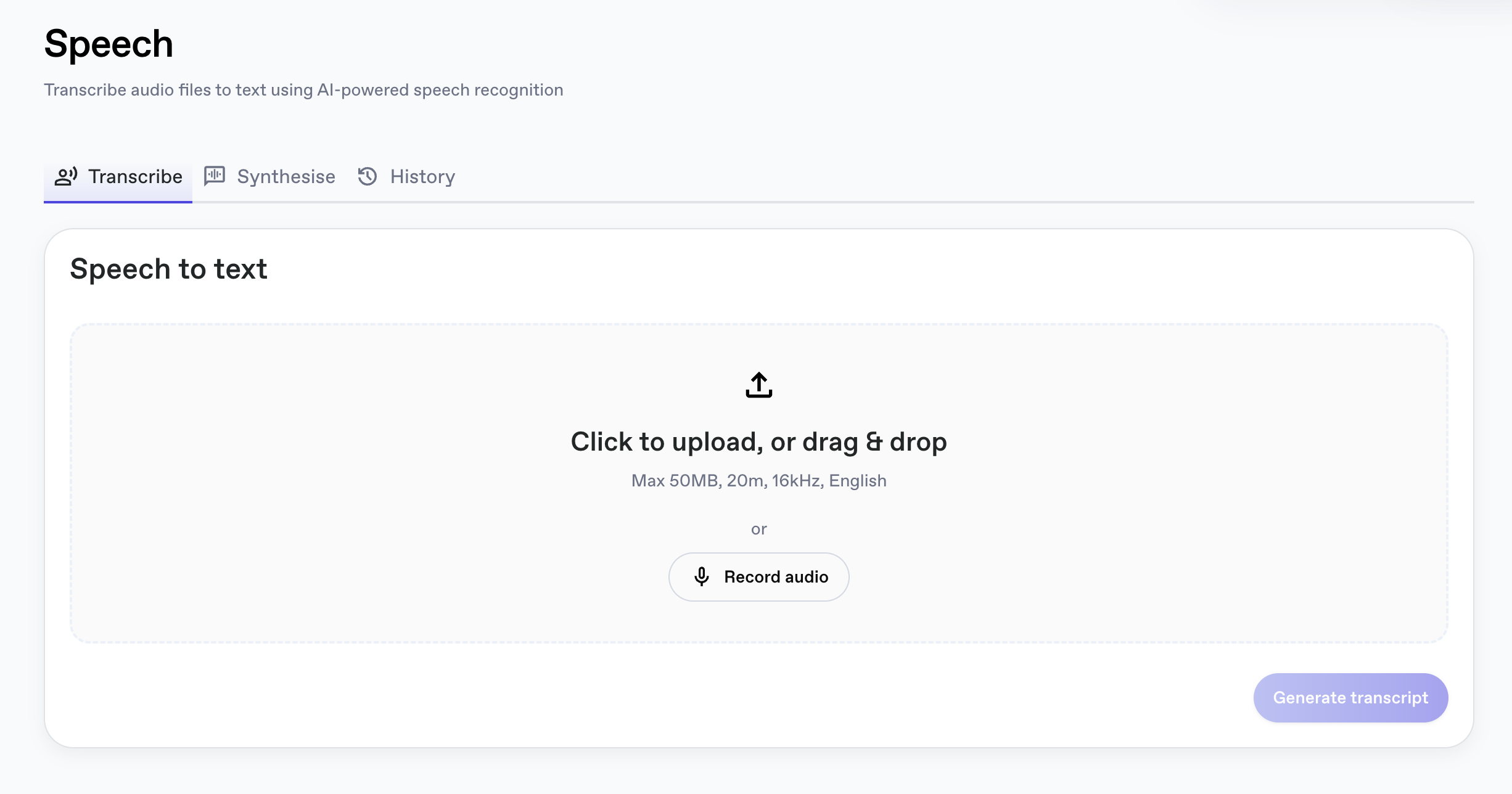
- Click to upload, or drag & drop an audio file into the upload area, or click Record audio to capture audio directly in the browser.
- Click Generate transcript.
The output transcript appears below the upload area once the job is complete, and is saved to History for later download.
Limits
| Limit | Value |
|---|---|
| Max file size | 50 MB |
| Max duration | 20 minutes |
| Sample rate | 16 kHz |
| Language | English |
Synthesise
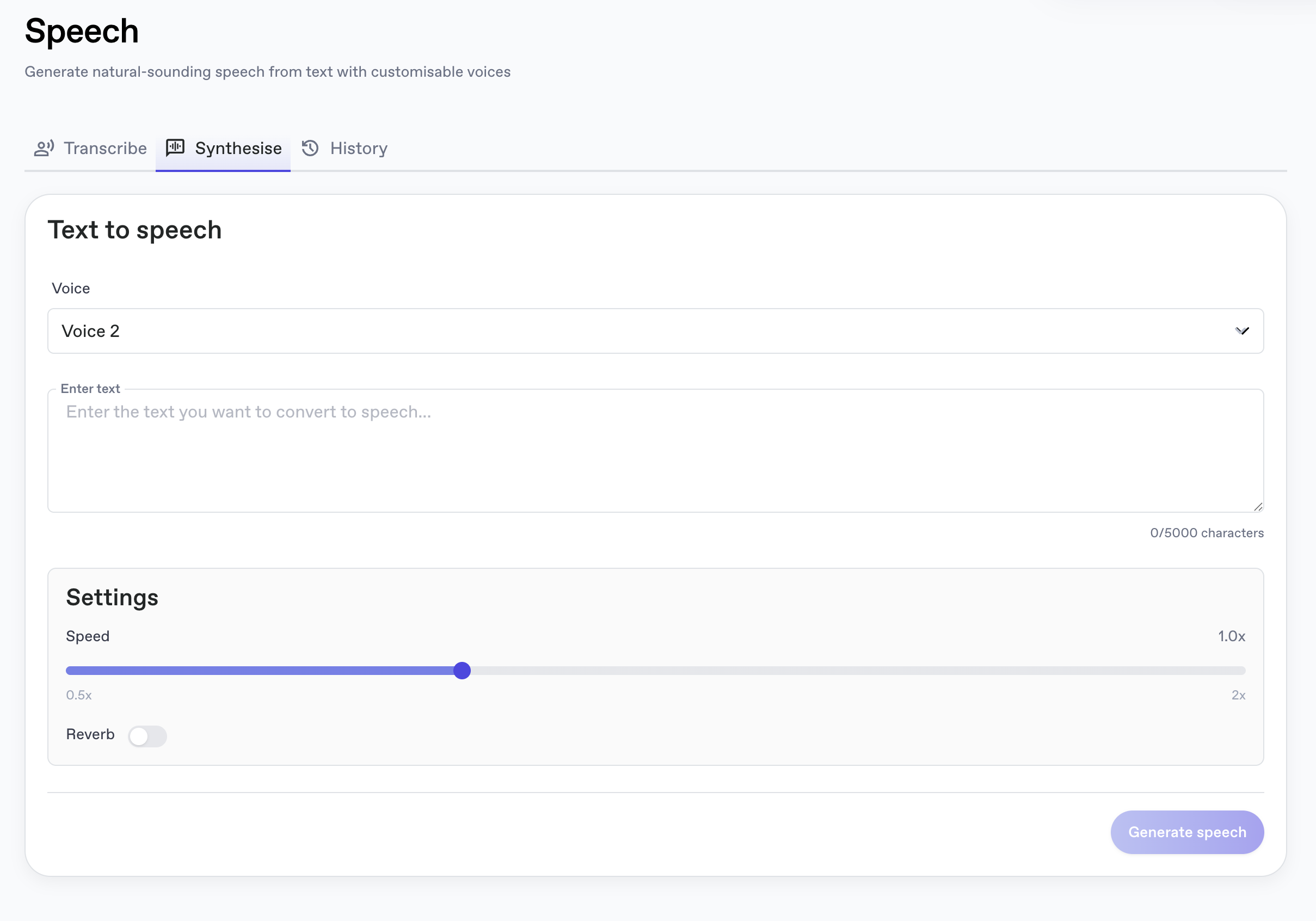
Use the Synthesise tab to generate audio from text.
- Pick a Voice from the dropdown. Two voices are currently available.
- Enter your text in the Enter text field. The character counter on the bottom right caps each job at 5000 characters.
- Adjust the Settings:
- Speed: slider from 0.5x to 2x (default 1.0x).
- Reverb: toggle a reverb effect on or off.
- Click Generate speech.
The generated audio appears below the form with a player and download button, and is also saved to History.
History
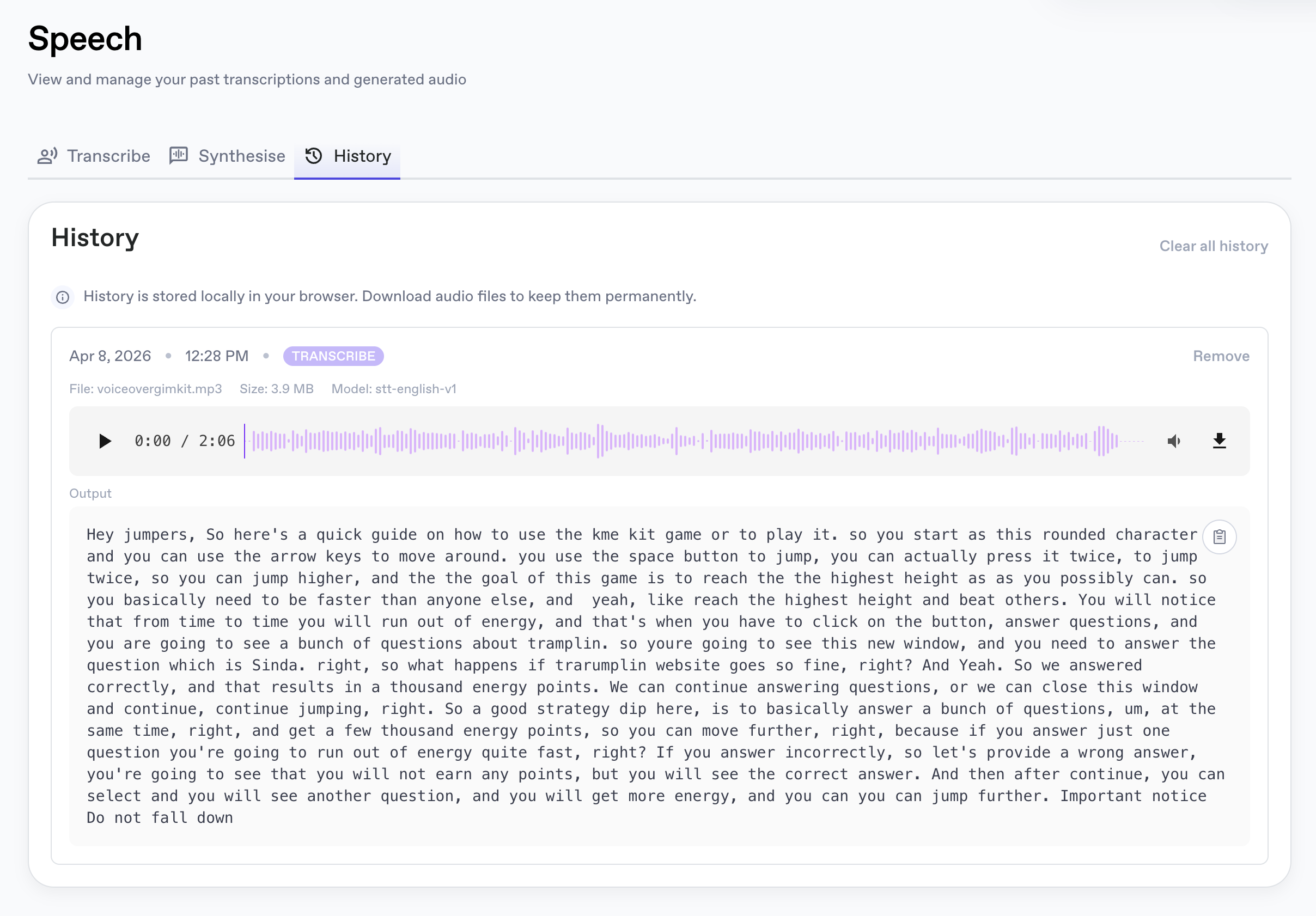
The History tab lists every transcription and synthesis job you've run, with the most recent at the top.
Each entry shows:
- Date, time, and the job type badge (TRANSCRIBE or SYNTHESISE).
- For transcription jobs: the source filename, file size, and the model used (e.g.
stt-english-v1). - An audio player with the original or generated audio, plus a download button to save the file.
- For transcription jobs: the Output transcript with a copy button.
- A Remove action to delete the individual entry, plus Clear all history at the top right to wipe everything.
History is stored locally in your browser. Clearing site data, switching browsers, or signing in from another device will not bring it across. Use the download buttons to keep audio and transcripts permanently.