Viewing Your Virtual Machines
To view all the machines you have created, click on the Machines page in the left navigation.
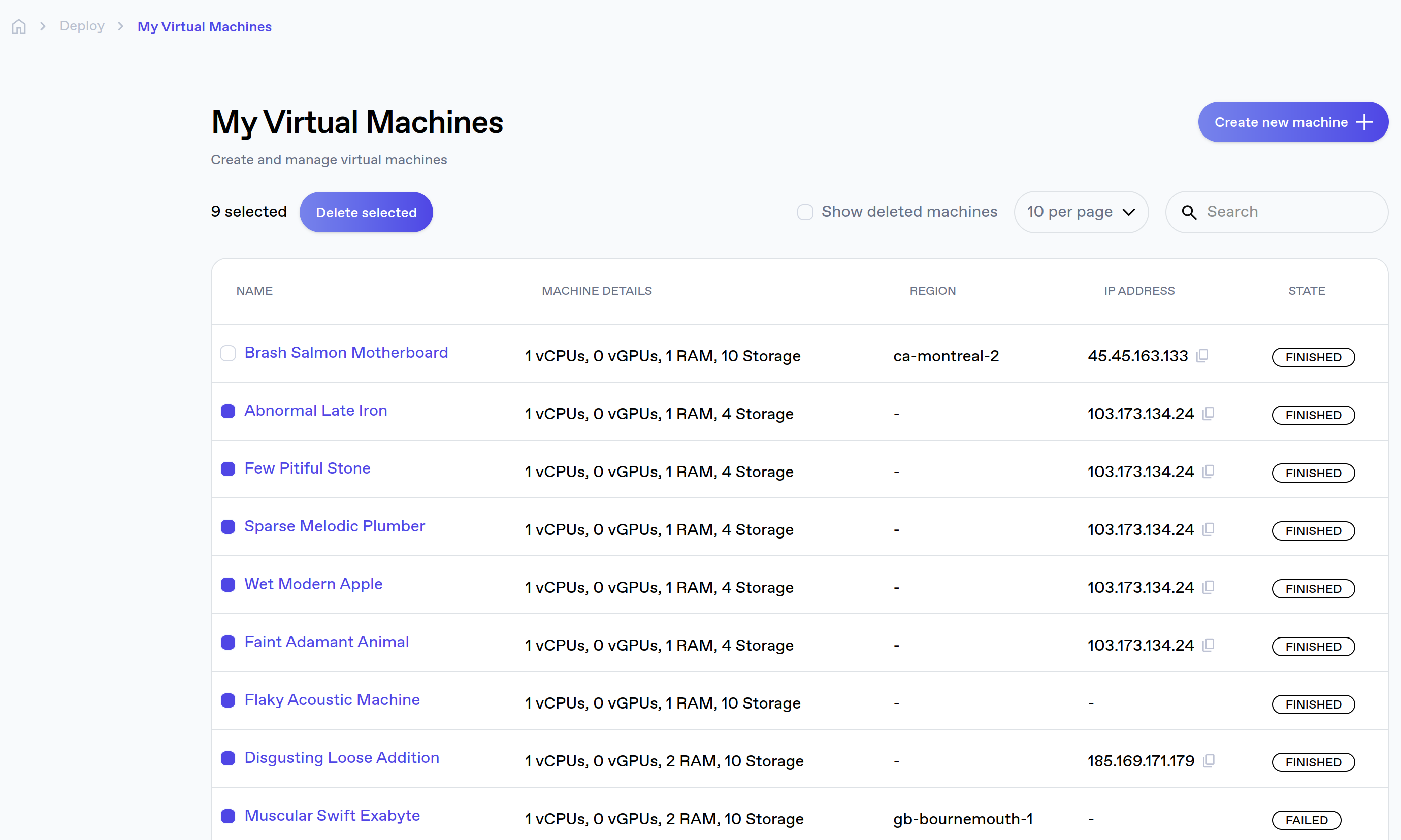
A list of the currently active machines will be displayed, as well as machines that were terminated in an earlier version of the platform. To remove terminated machines in bulk from the active list, or to delete active machines, you can select them in the list, and then click the Delete selected button. To display all deleted machines you can use the Show deleted machines toggle switch at the top right of the machine list.
Machine States
There are a few machine states to be aware of:
- Starting - Your machine is starting up.
- Running - Your machine has started and is running.
- Finished - Your machine has run out of tokens and has finished running.
- Failed - Something went wrong and the machine failed to start.
Machine Details
Click on a machine’s ID to view more details about it. This will take you to the virtual machine's details page that contains information about its status, region, IP address, operating system distro and version, and specification.

If you have any discounts applied for your next billing period they will also be displayed on this page.
Managing Your Machines
You can perform actions on the VM such as stopping and restarting your machine on the machine details page. You can also destroy the VM completely and doing so will refund the unspent tokens outside of your current billing period.
Ensure you are certain you want to destroy your virtual machine before clicking the Destroy button. A virtual machine can be stopped and restarted.